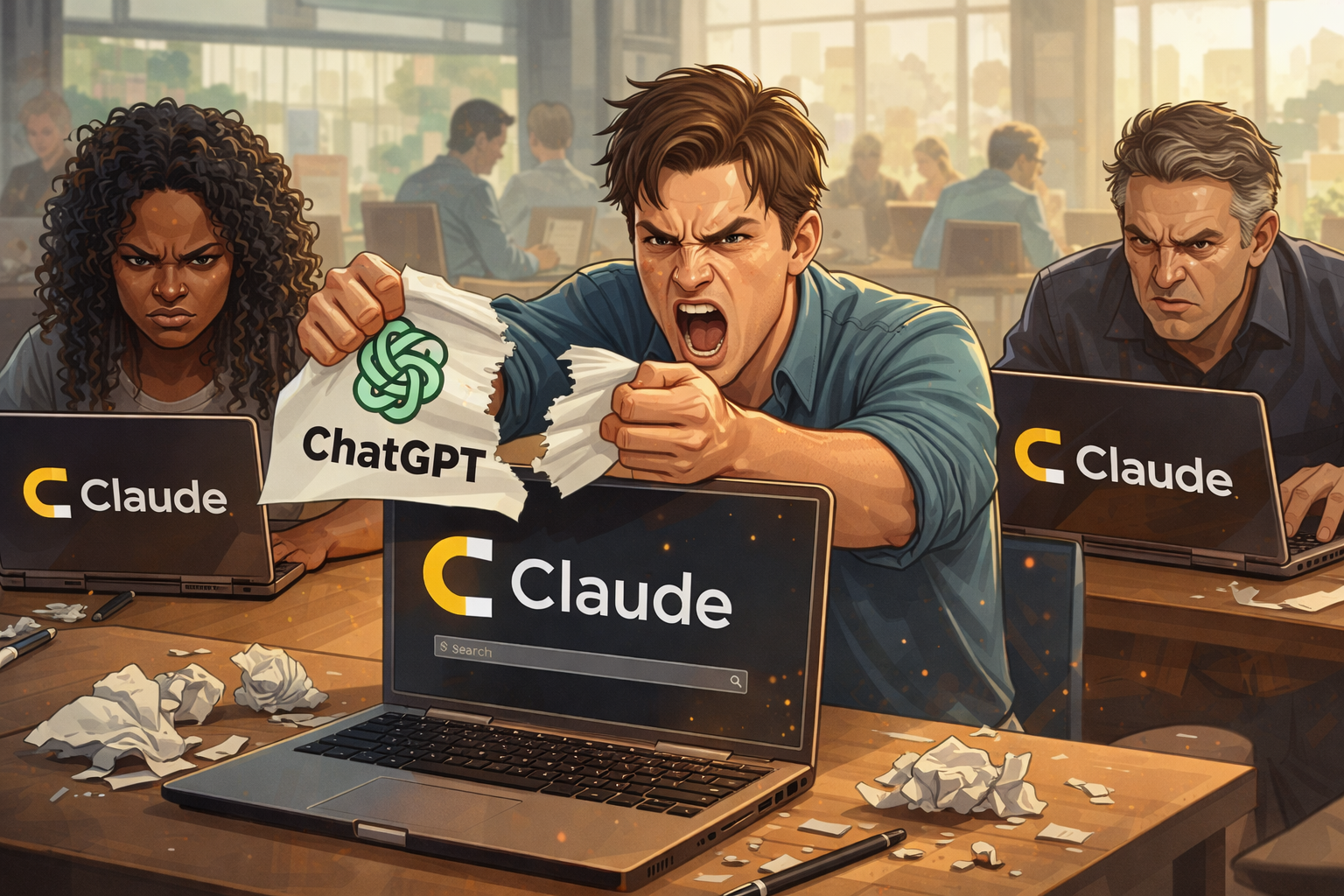
A political firestorm is driving users away from ChatGPT in numbers that are hard to ignore. OpenAI’s decision to allow the U.S. Department of Defense to deploy its AI models on classified networks, combined with earlier controversies including contracts with ICE and a $25 million political donation to MAGA Inc., has pushed a growing wave of users toward the exit.
A boycott site tracking the movement claims more than 1.5 million people have already cancelled or pledged to cancel their ChatGPT subscriptions.
The clearest beneficiary so far appears to be Anthropic’s Claude, which shot to the top of the App Store charts over the weekend, overtaking ChatGPT in the process.
Anthropic’s decision to decline to offer the U.S. government unrestricted access to its models has struck a chord with users looking for an alternative that feels more aligned with their values.
Whether that goodwill holds as Anthropic faces its own commercial pressures remains to be seen. But right now, the momentum is unmistakable.
If you’re among those planning to make the switch, the worst thing you can do is simply hit cancel and walk away. A few deliberate steps taken before you close your account can protect your data, preserve months or years of conversation history, and ensure your new AI service doesn’t feel like starting from zero.
Here’s what to do, and why each step matters.
Table Of Contents:
- First: Understand What You’re Actually Leaving Behind
- Step One: Export Your Full Chat Archive
- Step Two: Consider Deleting Your Chats
- Step Three: Extract Your Memory Profile
- Step Four: Clean It Up Before You Import
- Is It Worth It?
First: Understand What You’re Actually Leaving Behind
Before diving into the mechanics of exporting and transferring data, it’s worth pausing to think about what ChatGPT actually holds on you. because it’s probably more than you realize.
Beyond your chat history, ChatGPT has been quietly building a profile. Every preference you’ve expressed, every correction you’ve made to its tone or format, every personal detail you’ve mentioned in passing can be stored in the model’s memory and used to shape future responses. This accumulated context is genuinely useful. It’s also, for many people, a reason to think carefully about what they’re handing over and to whom.
When you cancel your account, that profile doesn’t necessarily disappear. OpenAI’s own support documentation notes that data that has been de-identified or disassociated from your account may not be deleted, and that data subject to legal or security obligations will be retained regardless of your preferences.
The specifics of those obligations aren’t spelled out in detail, which means some portion of what you’ve shared with ChatGPT may linger on OpenAI’s servers long after you’ve moved on.
That’s not a reason to panic. But it is a reason to be intentional about how you exit.
Step One: Export Your Full Chat Archive
The first concrete thing to do is request a complete export of your ChatGPT data. OpenAI provides this option through its settings menu, and it’s worth doing even if you’re skeptical you’ll ever look at it again.
Conversations have a habit of becoming useful in retrospect: a piece of code you developed collaboratively, a document draft you refined over multiple sessions, a research thread you can’t quite reconstruct from memory. Having the archive means you’re not gambling on remembering what you worked on.
One important caveat: this process is not instant. After you submit the request, OpenAI will send a download link to your registered email address. Depending on how much history you have, this can take anywhere from a few minutes to several hours.
The critical rule here is simple: do not close or delete your account until that email arrives and you’ve confirmed the download is complete and accessible. Starting the export and then immediately cancelling is a risk not worth taking.
To get started, open ChatGPT in a web browser.
Click your profile icon in the bottom-left corner of the screen and select Settings from the menu that appears.
From there, navigate to Data Controls.
At the bottom of that screen, you’ll find an Export Data button. Click it, follow the on-screen instructions, and then wait for the confirmation email before taking any further action.
Step Two: Consider Deleting Your Chats
Once your export has been successfully downloaded, you’ll notice another option in the same Data Controls screen: the ability to delete all your chats at once.
For users who are leaving partly out of privacy concerns, this is worth considering. It permanently removes your entire conversation history from ChatGPT’s interface: every thread, every session, everything.
If you’re going to do this, the sequencing matters enormously. Download and verify your export first. Then delete. Reversing that order and discovering the export failed or was incomplete is a painful situation with no easy fix.
Even after you delete, the process isn’t immediate. According to OpenAI’s support page, deleted chats are scheduled for permanent removal but the process can take up to 30 days to complete.
And as noted above, data that has already been de-identified or that OpenAI is legally required to retain won’t be deleted regardless of your request.
This isn’t unique to OpenAI. Most large tech platforms have similar carve-outs buried in their terms, but it’s worth knowing that “deleted” and “gone forever” aren’t always synonymous.
Step Three: Extract Your Memory Profile
This is the step that most people overlook, and it’s arguably the most valuable one if continuity matters to you.
If you’ve been using ChatGPT for any significant length of time with memory enabled, the model has accumulated a surprisingly detailed picture of who you are.
Preferences about response length and tone. Personal details you’ve mentioned in conversation. Ongoing projects and goals. Technical tools and frameworks you work with regularly. Corrections you’ve made to the model’s behavior.
This context takes time to build, and if you walk away without it, you’re looking at weeks of re-establishing the same ground with a new service.
The good news is that you don’t have to leave it behind. Anthropic has published step-by-step instructions for importing memory from ChatGPT directly into Claude.
The process centers on a prompt you paste into ChatGPT, which instructs the model to output everything it knows about you in a single, structured block that can be easily copied and transferred.
Anthropic’s suggested prompt asks ChatGPT to list all stored memories, personal details, behavioral preferences, projects, tools, and any other learned context, formatted by date where available, and with your original words preserved as closely as possible. It’s a solid starting point and surfaces a useful snapshot of what ChatGPT has retained.
That said, in practice, Anthropic’s default prompt tends to return a fairly conservative summary, roughly equivalent to what you’d see if you navigated to Settings → Personalization → Memory → Manage inside ChatGPT manually. It covers the explicit memories the model has formally stored, but doesn’t always capture the subtler contextual knowledge the model has absorbed through repeated conversations.
For a more thorough extraction, it’s worth seeking out the extended prompt published by blogger Jonathan Edwards on his Substack. Edwards’ version asks more probing questions and tends to surface a significantly richer and more detailed picture, including context that Anthropic’s simpler prompt often misses entirely. If you’ve been a heavy ChatGPT user, the difference between the two prompts can be substantial.
Step Four: Clean It Up Before You Import
Whichever prompt you use, don’t just copy the output and paste it wholesale into your new service. Take a few minutes to read through it first.
Memory caches are imperfect. They accumulate over time in ways that reflect how you were using a service months or years ago, not necessarily how you use it now.
Old job titles, completed projects, outdated preferences, interests you’ve moved on from, all of it can end up in the export. Importing stale or inaccurate information into Claude doesn’t just clutter your new profile; it can actively produce worse responses as the model tries to incorporate context that no longer applies to you.
A light editing pass before import is worth the ten minutes it takes. Remove anything that’s no longer accurate, consolidate anything that’s redundant, and flag anything you’re not sure about. What you’re left with is a clean, current snapshot of who you are and how you like to work; a much better foundation for a new relationship with a new tool.
Once you’ve tidied the list, Anthropic offers a direct import link that, provided you’re already logged into Claude, will load your memory directly into your account. The transition from there should feel like a continuation rather than a reset.
Is It Worth It?
That depends on what’s driving you to leave. If your concerns are primarily political — OpenAI’s government contracts, its leadership’s political affiliations, the direction the company appears to be heading — then no amount of data hygiene changes the underlying calculus. You’ve already made your decision.
But if you’ve been hesitating because switching feels like too much friction, the steps above remove most of it. Your chat history is exportable. Your memory profile is transferable. Your preferences don’t have to be rebuilt from scratch. The barrier to leaving is lower than it probably feels.
Whether this moment represents a genuine turning point for the AI industry or a temporary spike in cancellations that fades as the news cycle moves on, one thing seems clear: users are paying closer attention to the values and political entanglements of the companies behind their AI tools.
For OpenAI, 1.5 million departures — pledged or real — is a signal worth taking seriously. For everyone else, it’s a useful reminder that switching costs, while real, are manageable.
If you’re going to go, go prepared.